# SSO configuration

Use this page to configure Azure SSO for Bridge XR.

### Goal

Create an application registration in Microsoft Entra ID that can be used by:

* the web dashboard
* the web player
* the Unity-side login flow where required

### Step 1: open Microsoft Entra ID

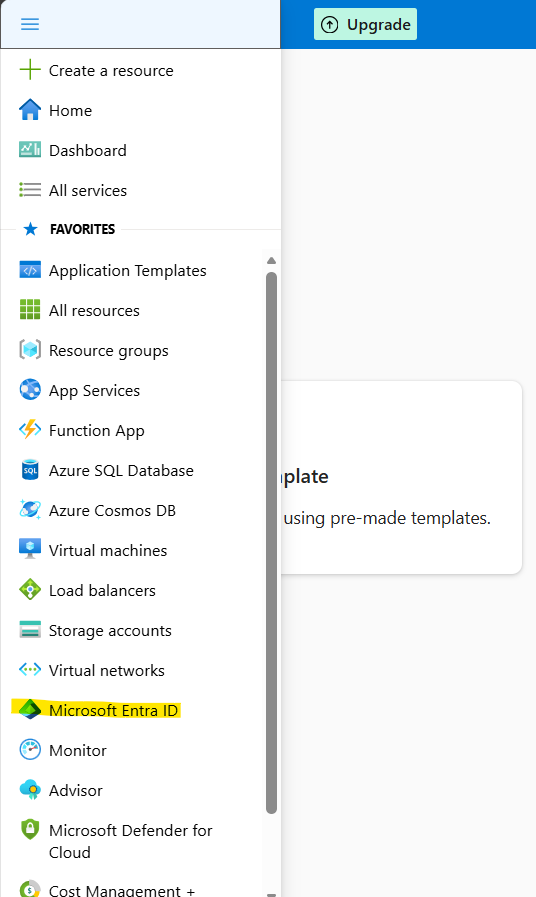
Log in to Azure Portal and open **Microsoft Entra ID**.

<figure><img src="/files/yiUreI7DKBX8uf2rLYHY" alt="Open Microsoft Entra ID"><figcaption><p>Open Microsoft Entra ID</p></figcaption></figure>

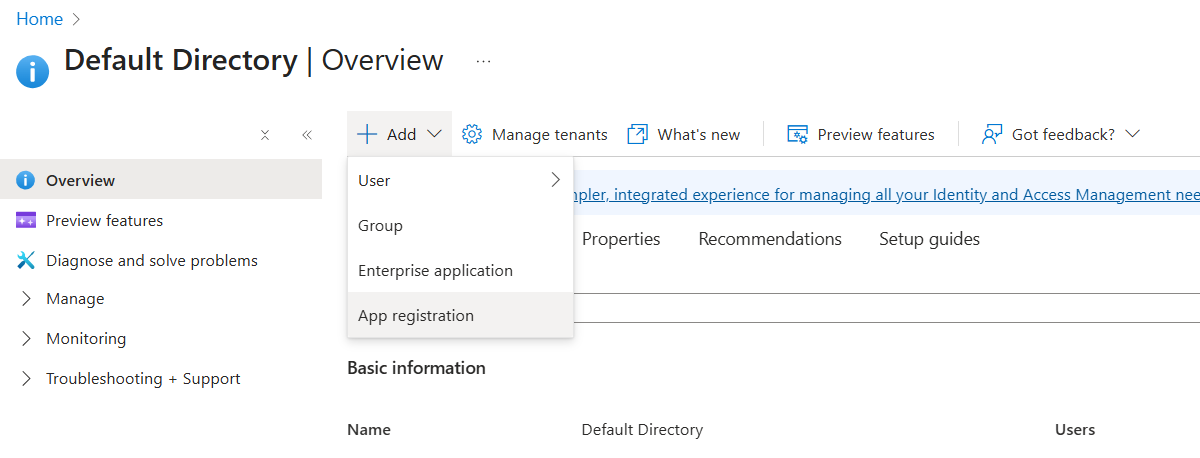
### Step 2: register a new application

1. Open **App registrations**.
2. Create a new application.
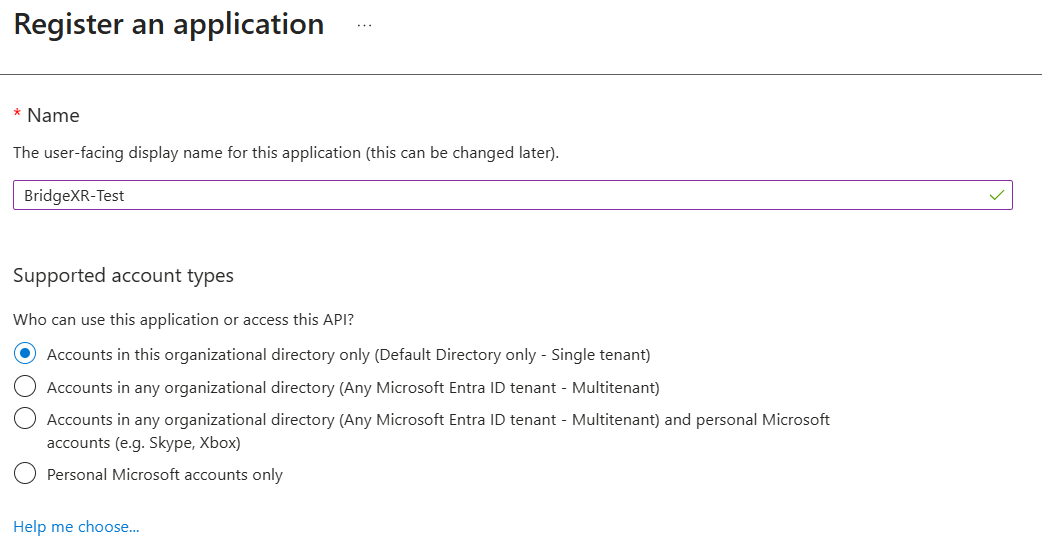
3. Give it a clear name.
4. Click **Register**.

<figure><img src="/files/CI7eImCvAh2eOtXivaqs" alt="Azure app registrations"><figcaption><p>Azure app registrations</p></figcaption></figure>

<figure><img src="/files/U1bgsKga3GaJOqBRmkbo" alt="Create a new Azure application"><figcaption><p>Create a new Azure application</p></figcaption></figure>

### Step 3: add redirect URIs

Add the required redirect URIs for Bridge XR.

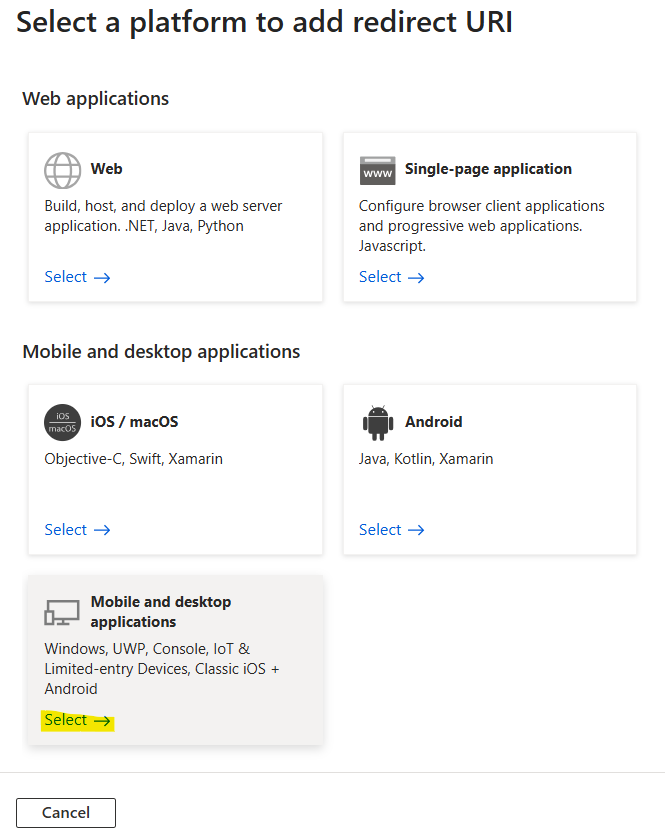
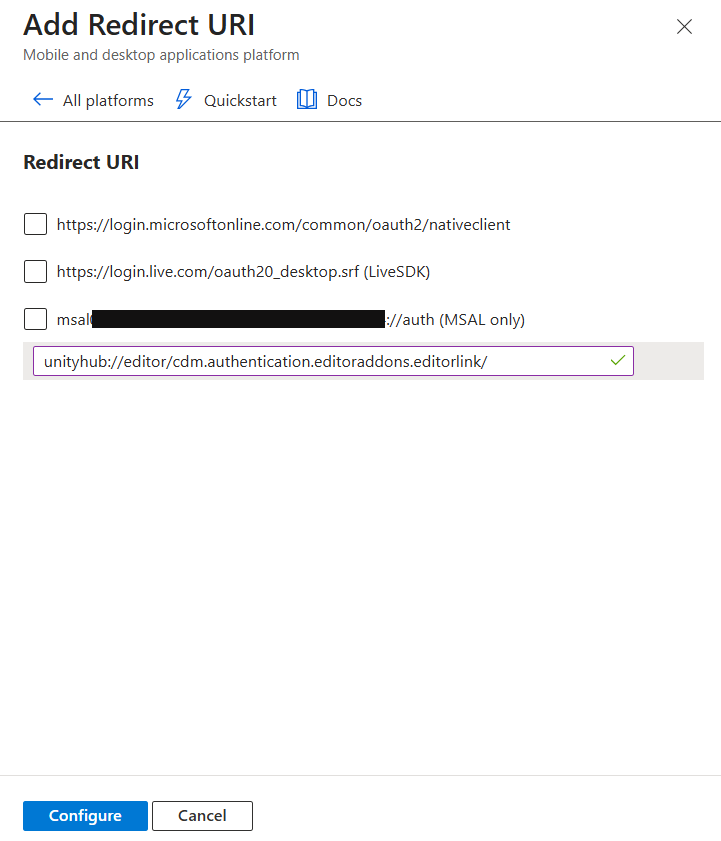
#### Mobile and Desktop applications

Add:

`unityhub://editor/cdm.authentication.editoraddons.editorlink/`

<figure><img src="/files/F5Fyqj0xaVgL9TwCGBIf" alt="Select Mobile and Desktop applications"><figcaption><p>Select Mobile and Desktop applications</p></figcaption></figure>

<figure><img src="/files/PxD8cBgDbrKSR5gRRTNU" alt="Configure the Mobile and Desktop redirect URI"><figcaption><p>Configure the Mobile and Desktop redirect URI</p></figcaption></figure>

#### Single-page application for the deployed dashboard

Add:

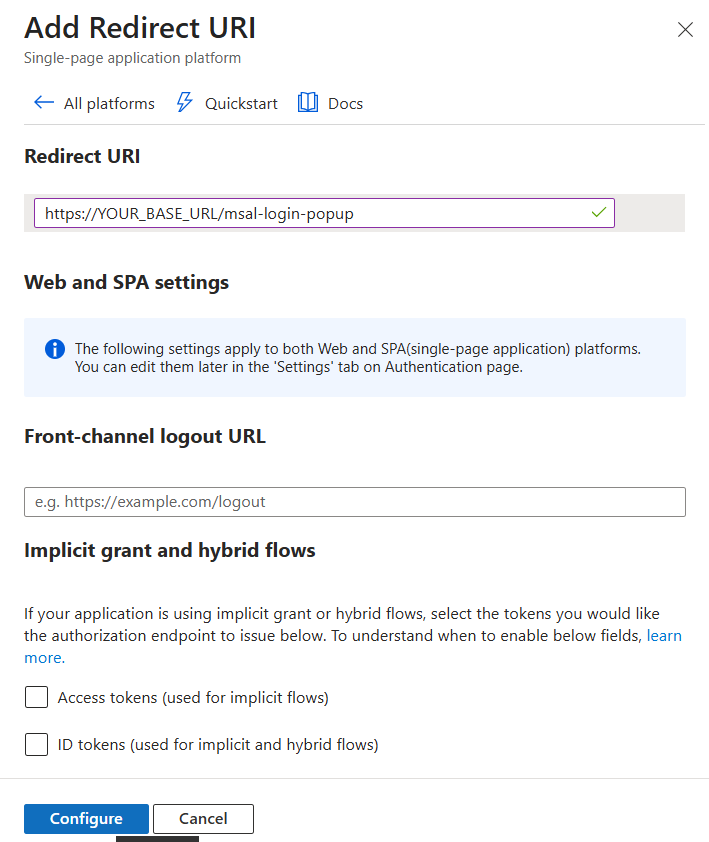
`https://<YOUR_BASE_URL>/msal-login-popup`

Use your final Bridge XR dashboard base URL.

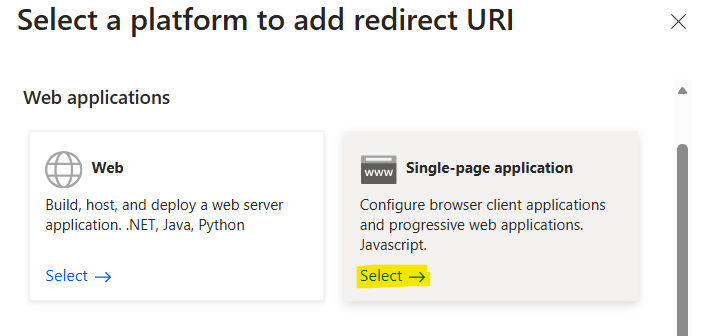
<figure><img src="/files/NPuYFiINsHiR2IVJC6lE" alt="Add a single-page application redirect URI"><figcaption><p>Add a single-page application redirect URI</p></figcaption></figure>

<figure><img src="/files/THxtNd0nk0PheHaA2Eot" alt="Configure the dashboard redirect URI"><figcaption><p>Configure the dashboard redirect URI</p></figcaption></figure>

#### Local callback

Add:

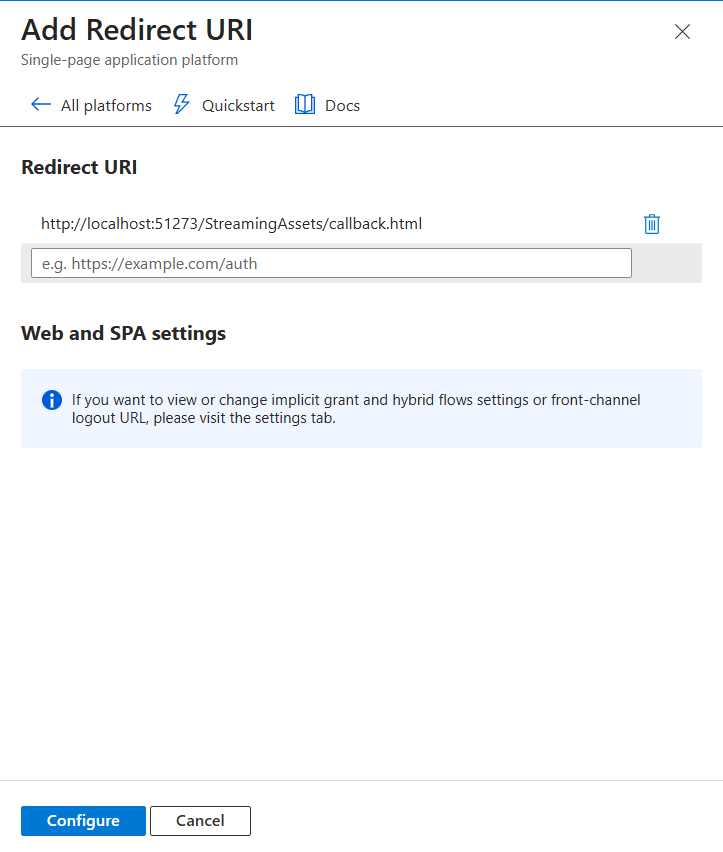
`http://localhost:51273/StreamingAssets/callback.html`

<figure><img src="/files/8cPFIRFmRx9TX83aKPea" alt="Add the local callback redirect URI"><figcaption><p>Add the local callback redirect URI</p></figcaption></figure>

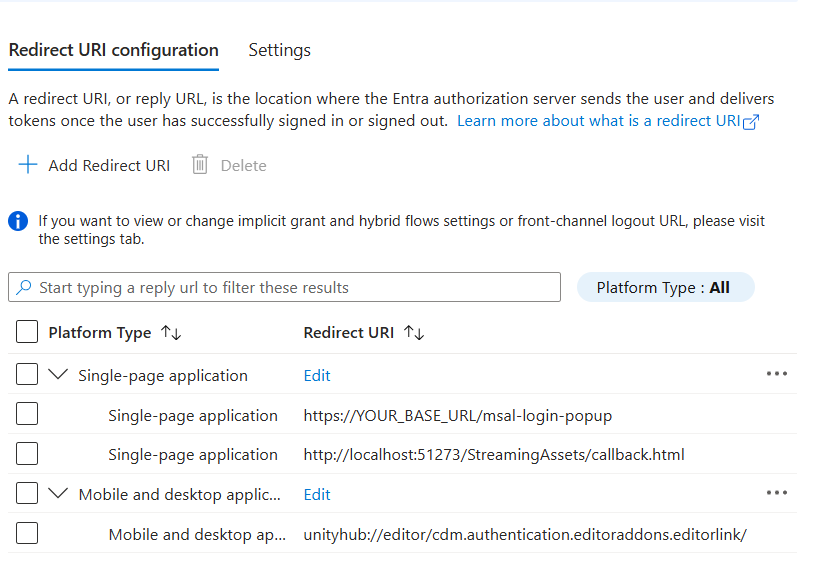
Once configured, the application should include all required redirect URIs.

<figure><img src="/files/XvYwYvwYxdAhHd6Qvwhl" alt="Completed Azure redirect URI setup"><figcaption><p>Completed Azure redirect URI setup</p></figcaption></figure>

### Step 4: configure token claims

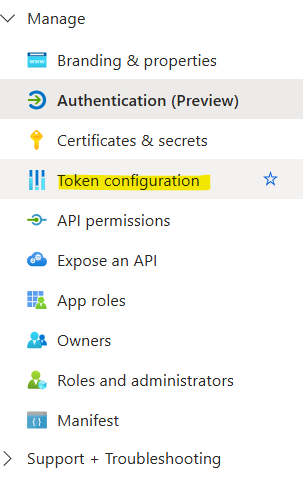
1. Open **Token configuration**.
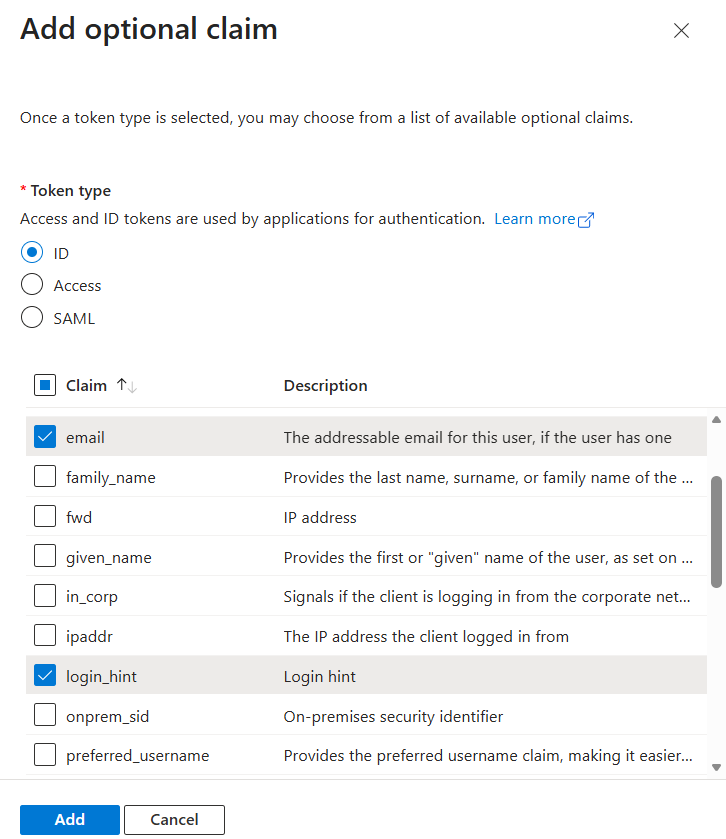
2. Add the required **Optional Claim**.

<figure><img src="/files/ZiQTMKGSKD9znWTeL9p2" alt="Open Token configuration"><figcaption><p>Open Token configuration</p></figcaption></figure>

<figure><img src="/files/VdpgxHqkJSGYjOJcx7hK" alt="Add the required Optional Claim"><figcaption><p>Add the required Optional Claim</p></figcaption></figure>

### Next step

After Azure is configured, continue with [SSO Integration](/bridge-xr/set-up-bridge-xr/server-deployment/sso-integration.md).


---

# Agent Instructions: Querying This Documentation

If you need additional information that is not directly available in this page, you can query the documentation dynamically by asking a question.

Perform an HTTP GET request on the current page URL with the `ask` query parameter:

```
GET https://unity.zoeimmersive.com/bridge-xr/set-up-bridge-xr/server-deployment/sso-configuration.md?ask=<question>
```

The question should be specific, self-contained, and written in natural language.
The response will contain a direct answer to the question and relevant excerpts and sources from the documentation.

Use this mechanism when the answer is not explicitly present in the current page, you need clarification or additional context, or you want to retrieve related documentation sections.