> For the complete documentation index, see [llms.txt](https://unity.zoeimmersive.com/llms.txt). Markdown versions of documentation pages are available by appending `.md` to page URLs; this page is available as [Markdown](https://unity.zoeimmersive.com/exporting-your-app/copy-of-exporting-for-web.md).
# Copy of Exporting for Web
To export your experience as a Web app, follow the procedure corresponding to your version of Unity.
{% tabs %}
{% tab title="Unity 6" %}
### Settings for Unity 6
* From the Unity editor's menu bar, go to Zoe > Build Target Window.
* Click on `Switch build target to Web`. Wait a moment for the process to complete.
### Additional Settings
A few settings need to be activated for the Web export to work properly with Unity 6.
* Make sure that `Enable Desktop Camera Control` is checked in the inspector of your interactive camera(s) (Interaction Rig).
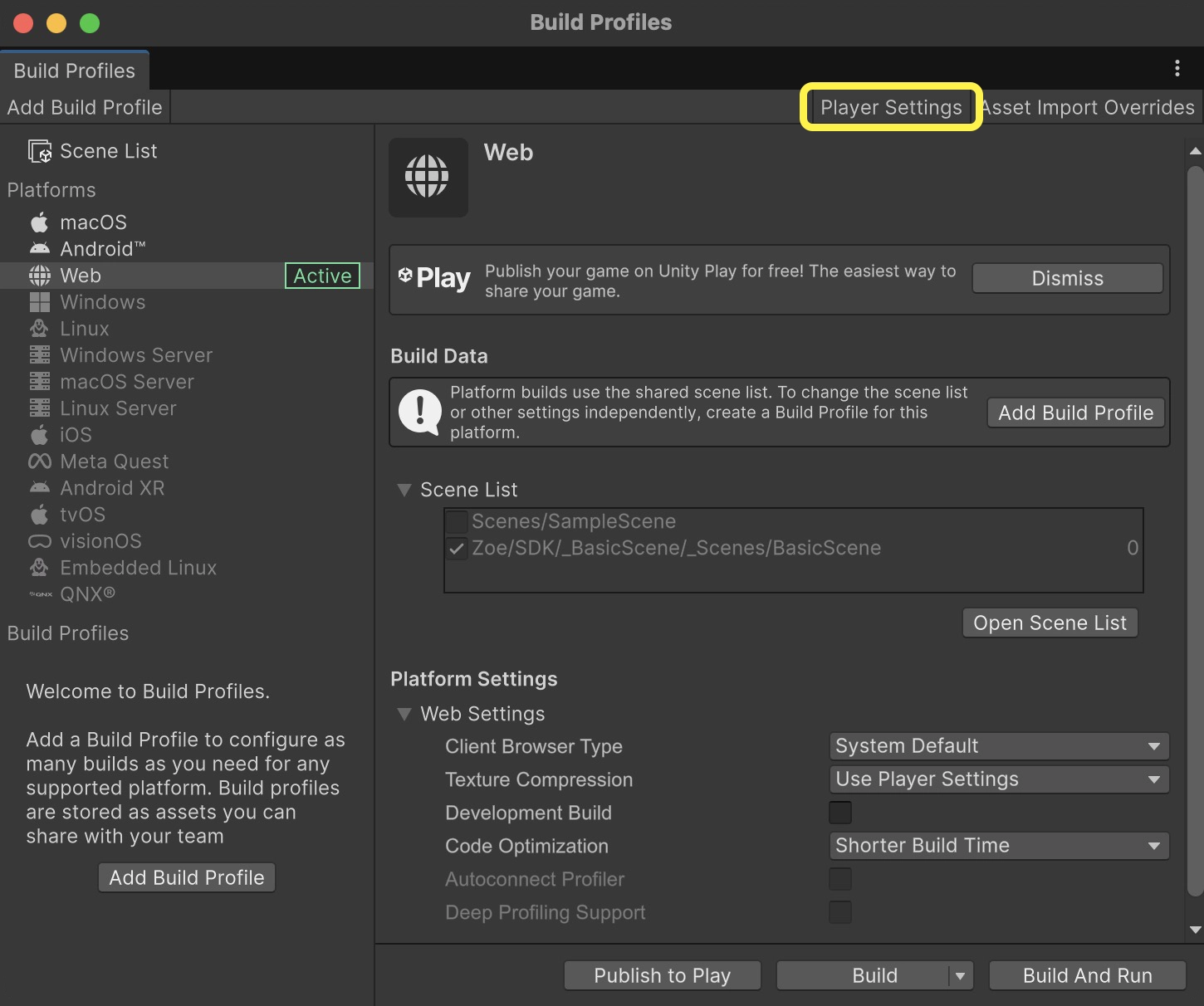
* Open File > Build Profiles.
* From the Build Profiles window, click on `Player Settings`.
* Select `Player` from the sidebar.
* From the Web tab (symbolized by a world globe), expand `Publishing Settings`.
* Change `Compression Format` to **Gzip**.
* Uncheck `Data Caching`.
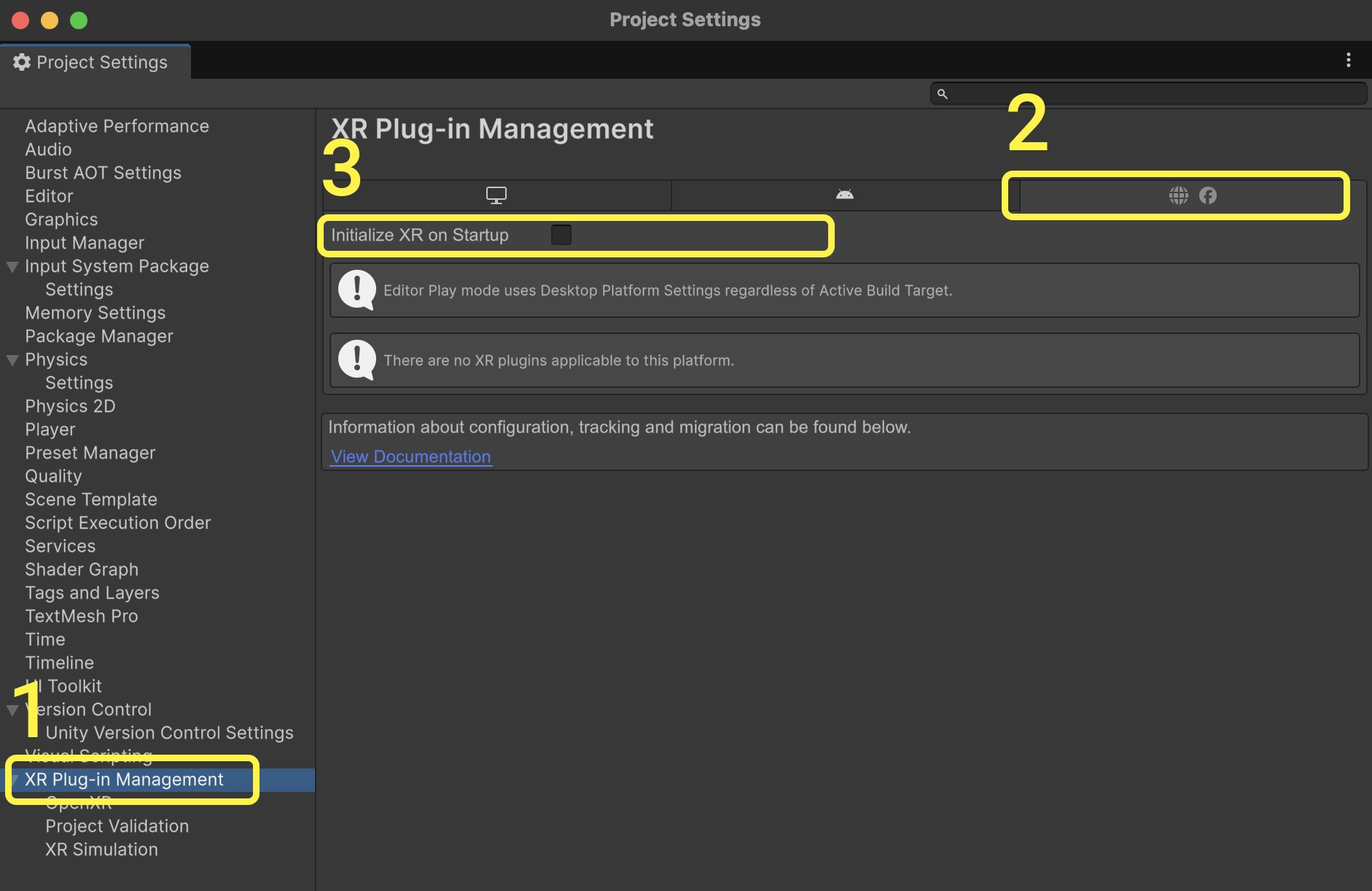
* Select `XR Plug-in Management` from the sidebar.
* From the Web tab (symbolized by a world globe), uncheck `Initialize XR on Startup`.
{% endtab %}
{% tab title="Unity 2023 and prior" %}
### Settings for Unity 2023 and prior
{% embed url="" %}
* Make sure that `Enable Desktop Camera` is checked in the inspector of your interactive camera(s) (Interaction Rig).
* Go to File > Build Settings.
* Select `WebGL` in the sidebar.
* If you see an `Install with Unity Hub` button, click on it. Unity will then install the necessary WebGL modules. You may need to close and reopen Unity after the process.
* With WebGL selected, click on `Switch Platform` at the bottom of the Build Settings window.
{% hint style="info" %}
If you don't see a `Switch Platform` button that means your project is already set up with the correct platform.
{% endhint %}
{% endtab %}
{% endtabs %}
### Exporting for Web
{% hint style="info" %}
This process covers all versions of Unity.
{% endhint %}
* In File > Build Profiles (or Build Settings), make sure all necessary scene(s) of your experience are selected in the Scene List.
* Hit `Build`.
* Name your build, select a folder for it to be exported to, then click `Save`.
It will take a few minutes for your build to export. Once done, your exported files will automatically open in a new window.
### Playing your Experience
Once you've exported a build for web, it's time to play it.
* Select your build and compress it as a .zip file (Windows: right-click on folder, Compress to... > ZIP File / macOS: right-click on folder, Compress "\[Build name]").
{% hint style="info" %}
Make sure to compress the root folder of your build and not a subfolder. The root folder is the one you named when exporting, and it always contains an `index.html` file.
{% endhint %}
* Go to [play.unity.com](https://play.unity.com/en).
* Log into your Unity account, then click on the Upload icon on the right side of the menu bar.
* Select your build's ZIP file or simply drag and drop it into the Upload section.
* Fill in the Title and Description fields, then hit `Save`.
{% hint style="info" %}
If your build's visibility is set to `Public`, you'll be able to share it with anyone via an url address.
{% endhint %}
* Hit the `Play` button to launch your experience!